Unified NDT Ecosystem: Precision Hardware & Integrated Software
Developed by SEONGSANLAB, DSPAUT delivers portable Phased Array UT, multi-channel rack scanners, and specialized defect acquisition/analysis software for global NDT technicians.
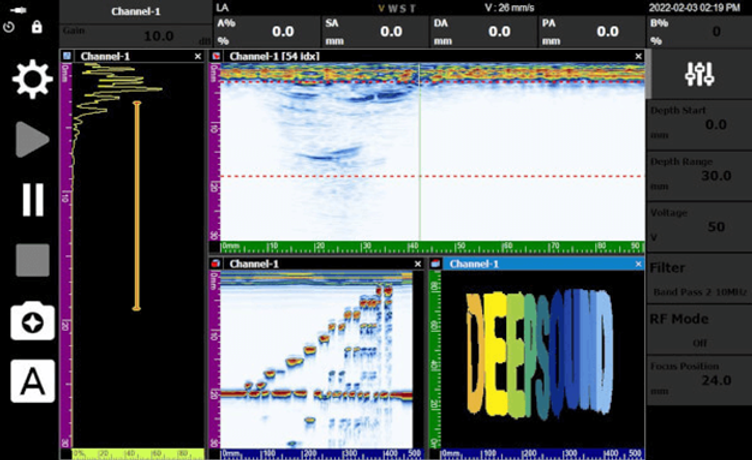
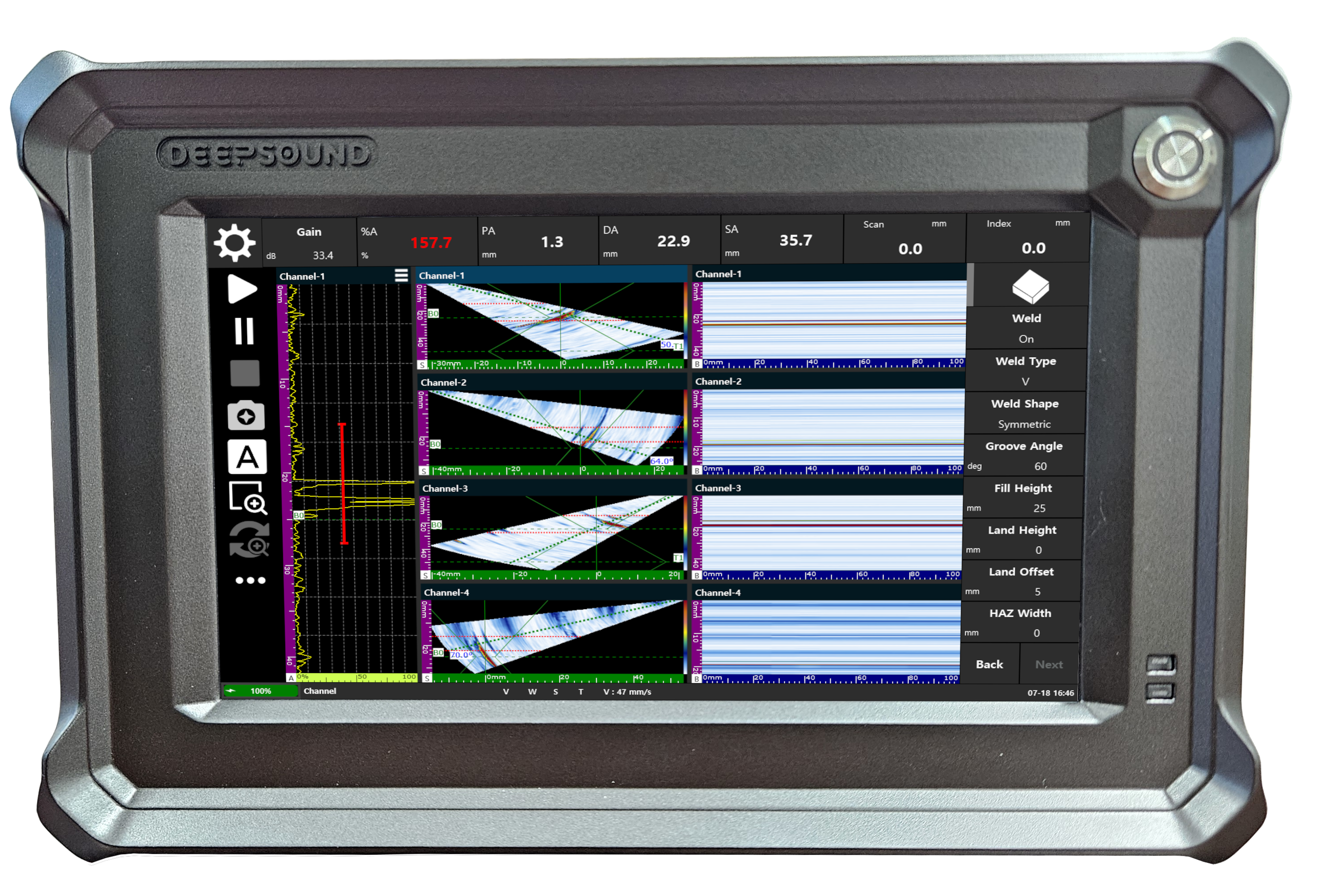
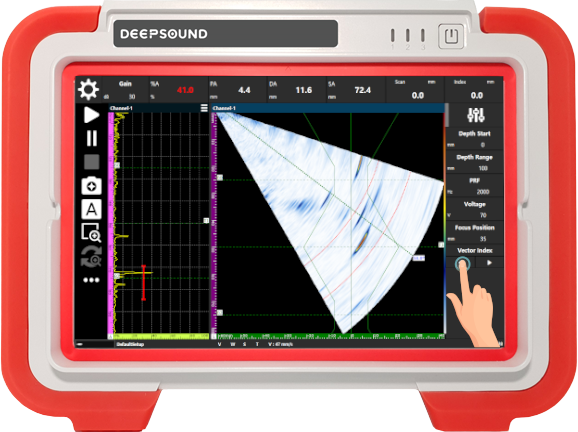
DEEPSOUND P5
Reflecting core feedback from field technicians, ensuring fast operation speed and rugged field usability.
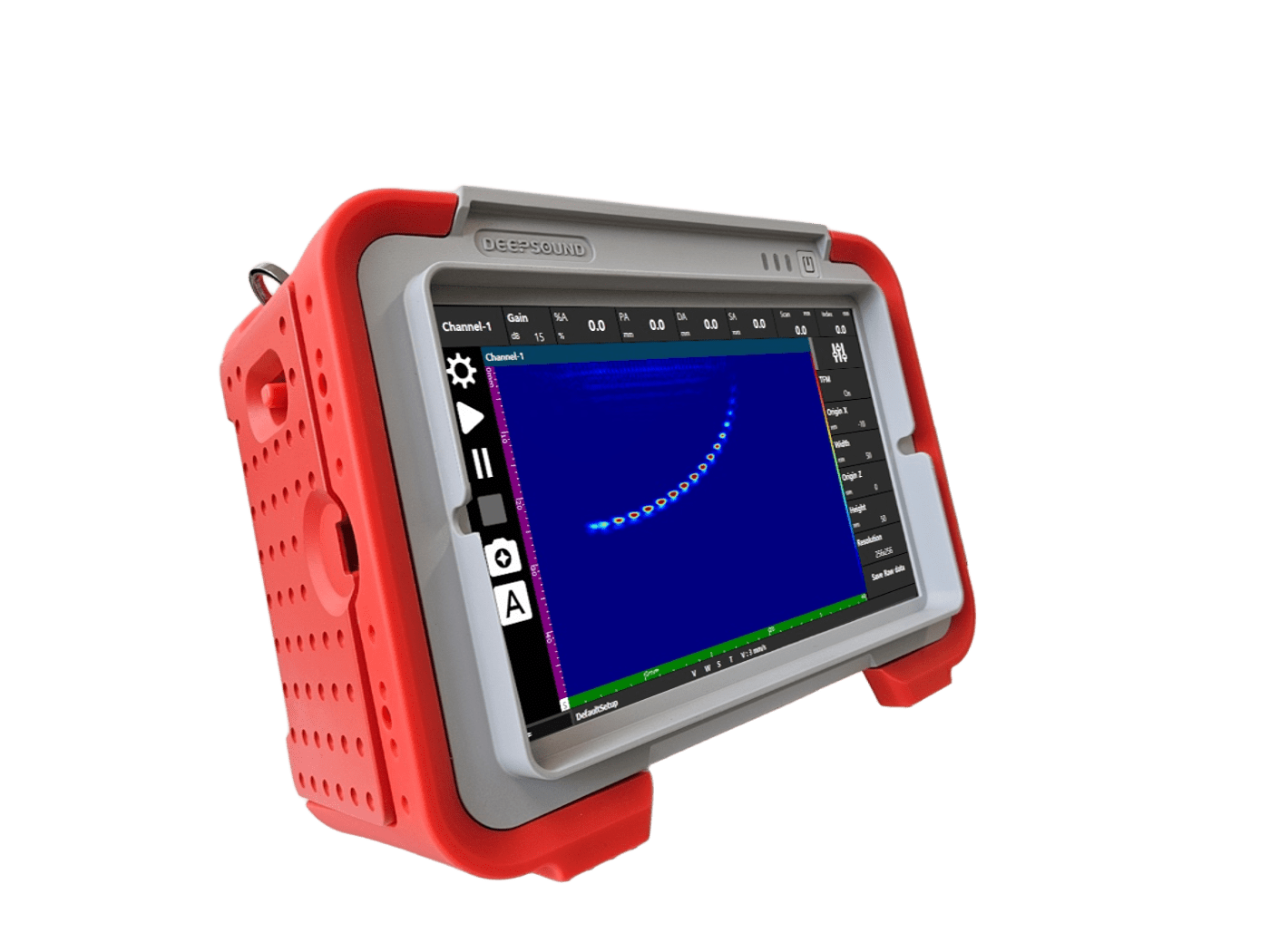
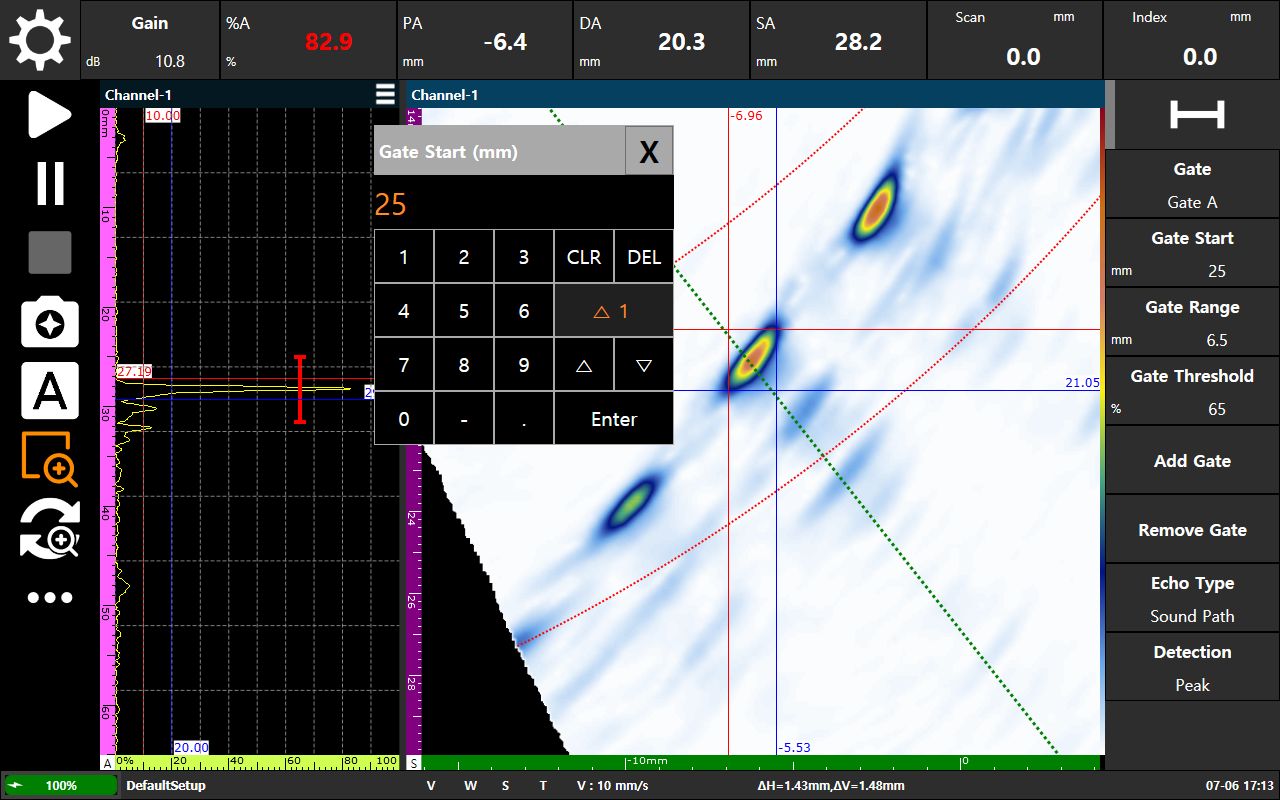
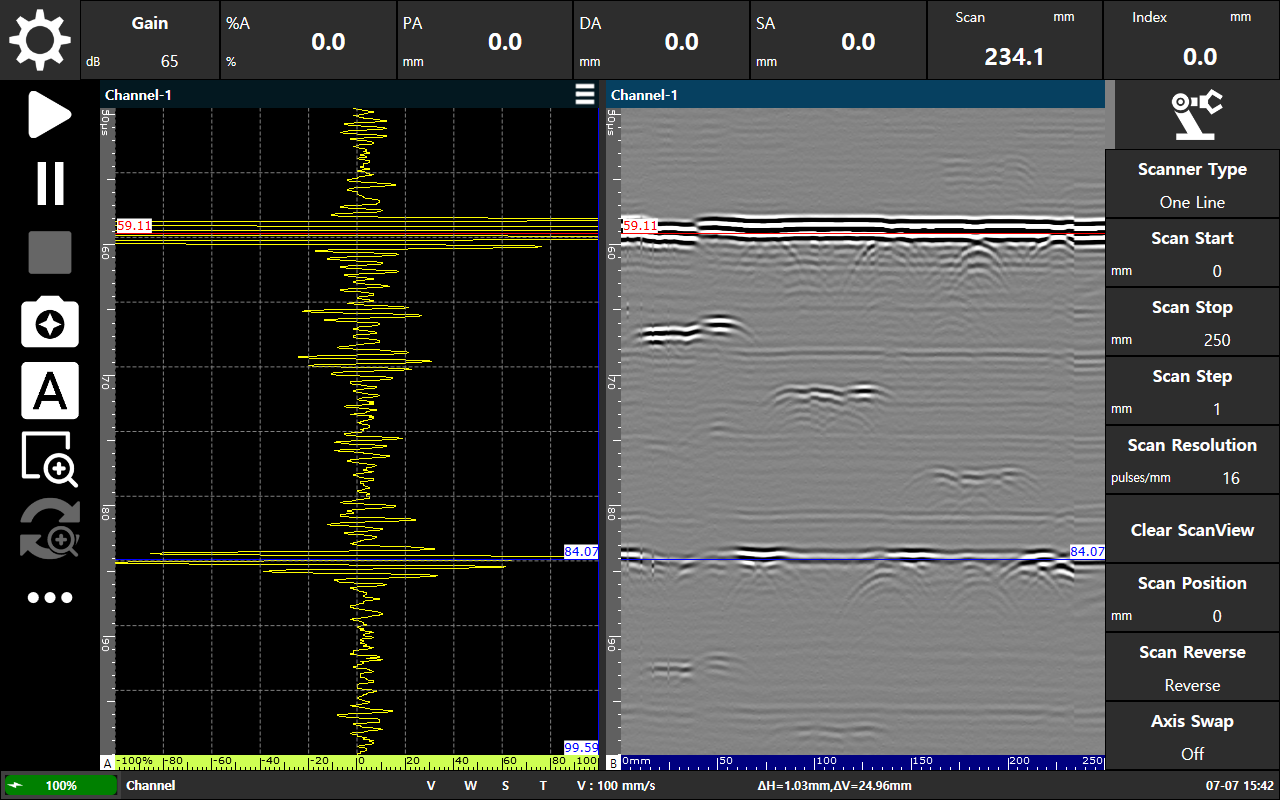
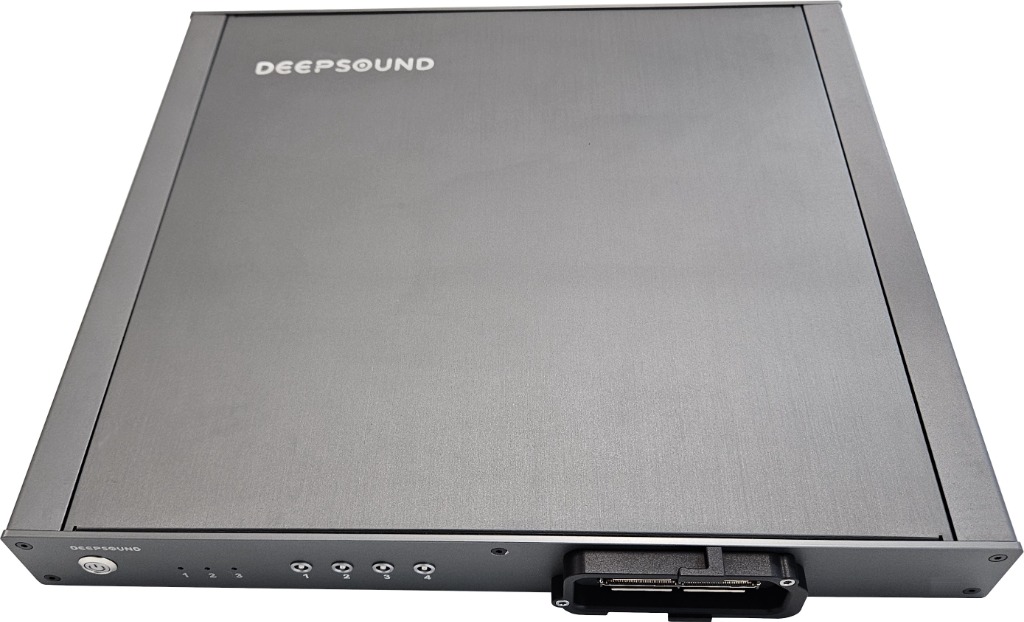
DEEPSOUND B3
Designed for optimal budget efficiency while preserving raw signal accuracy and compatibility with P5 ecosystem.
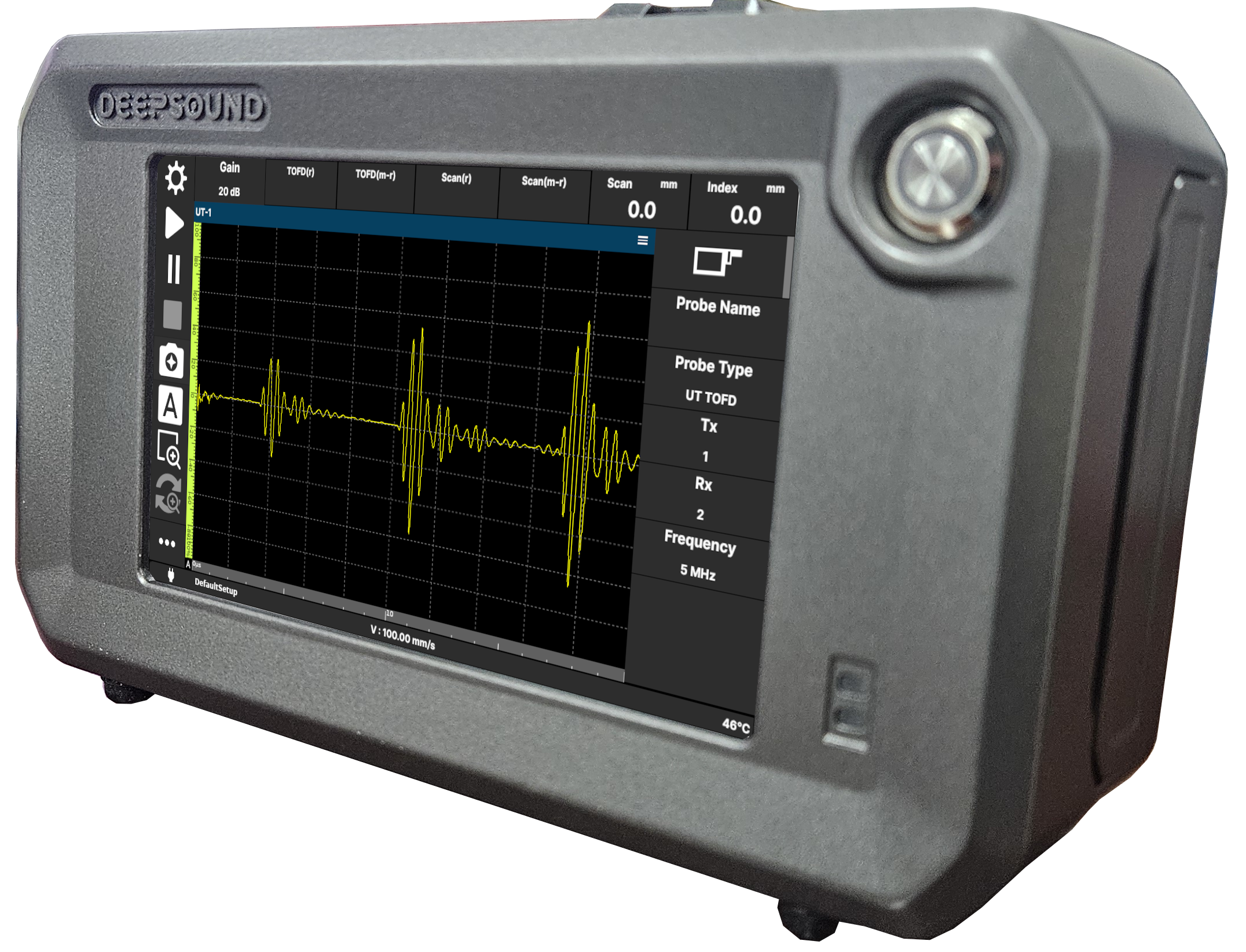
DEEPSOUND T3
0.9kg handheld design featuring an integrated 7" touchscreen to maximize mobility in narrow inspection spaces.
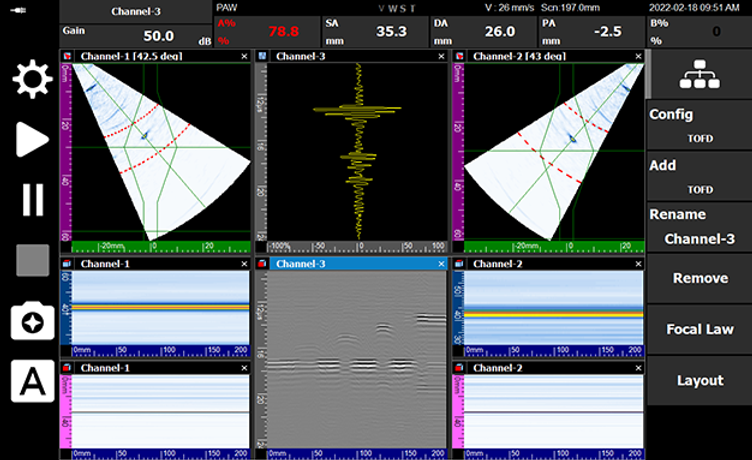
DSViewer Suite
Empowering comprehensive A, B, C-scan data analysis, high-resolution image exports, and standard CSV data exports.
Proprietary Tech
In-House H/W & S/W R&D
High Precision
PAUT & TOFD Multi-Channel
Rapid Support
B2B Portal & Custom SDKs
Precision Ultrasonic NDT Hardware Systems
From portable standalone phased array ultrasonic instruments to large-scale automated OEM system boards, explore our high-reliability NDT product lineup.
DEEPSOUND P5
Features a high-resolution 12.1-inch display with fast boot times and latency-free operation. Ensures precise defect detection across diverse industrial environments.
DEEPSOUND B3
Achieving an ultra-light body below 2.0kg (including battery) for maximized field portability. Outfitted with high cost efficiency and a real-time data acquisition engine matching the P5.
DEEPSOUND T3
Combining a 0.9kg ultra-lightweight body with a 7-inch bright touch LCD screen. Optimized for single-handed operations in narrow workspaces with default TOFD software integration.
From Real-Time Field Acquisition to Comprehensive Offline Analysis & Custom SDKs
SEONGSANLAB provides real-time data acquisition applications for rapid scanning, desktop-based offline analytical suites, and native developer libraries for custom integration.
DSVision
Highly integrated data acquisition and visualization software designed for portable PAUT hardware. Delivers seamless multi-group signals and real-time A/B/C/S-scan visualization to technicians directly in the field.
DSViewer Analysis
Desktop software built to analyze and evaluate pre-acquired raw files offline. Offers deep drag-and-drop defect sizing, depth measurement tools, and high-resolution screenshot image exports.
DSPAUT SDK (DSK)
A versatile library to develop and integrate custom applications directly with DSPAUT instruments. Bundles C# code APIs, ideal for institutional NDT researchers.
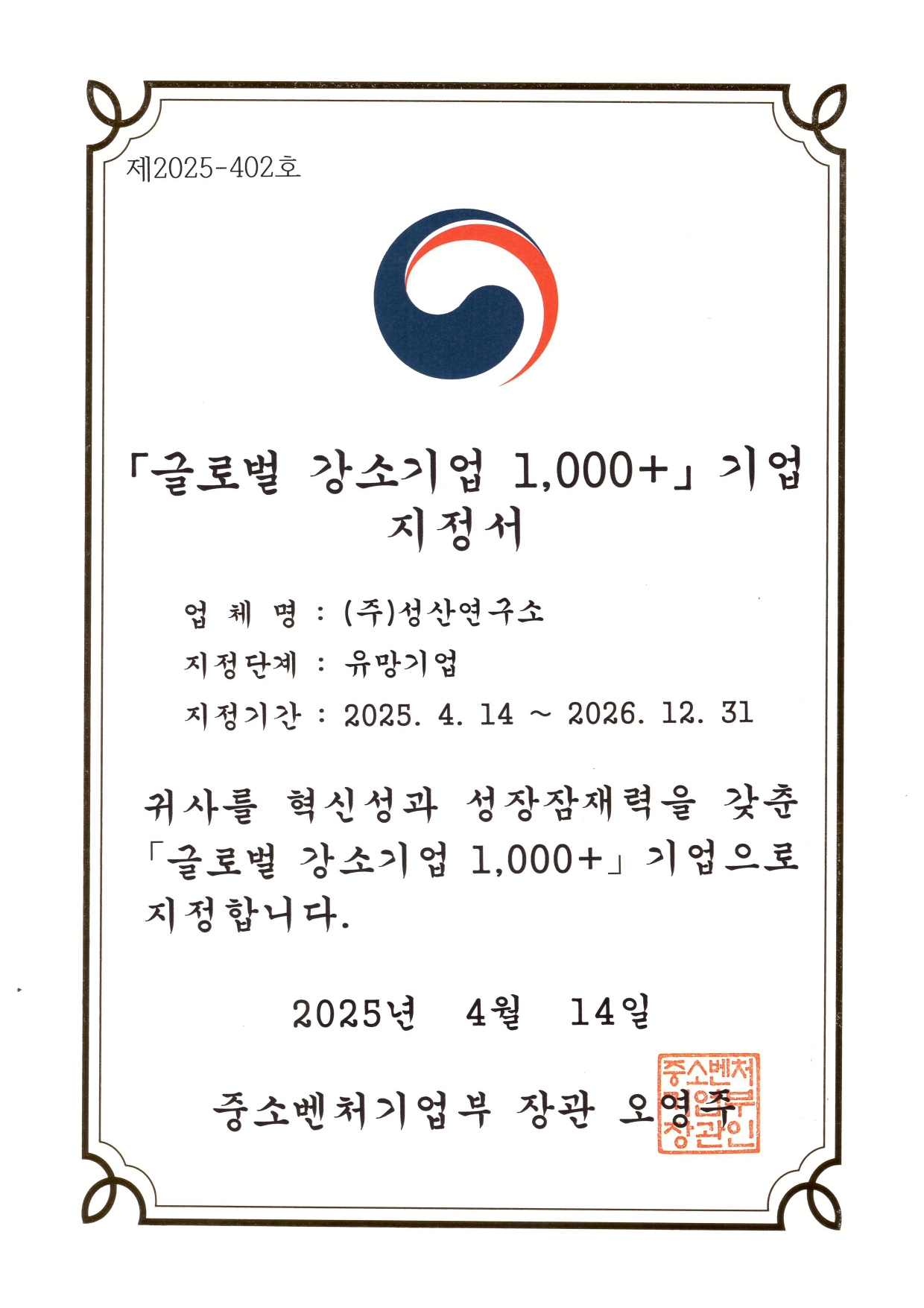
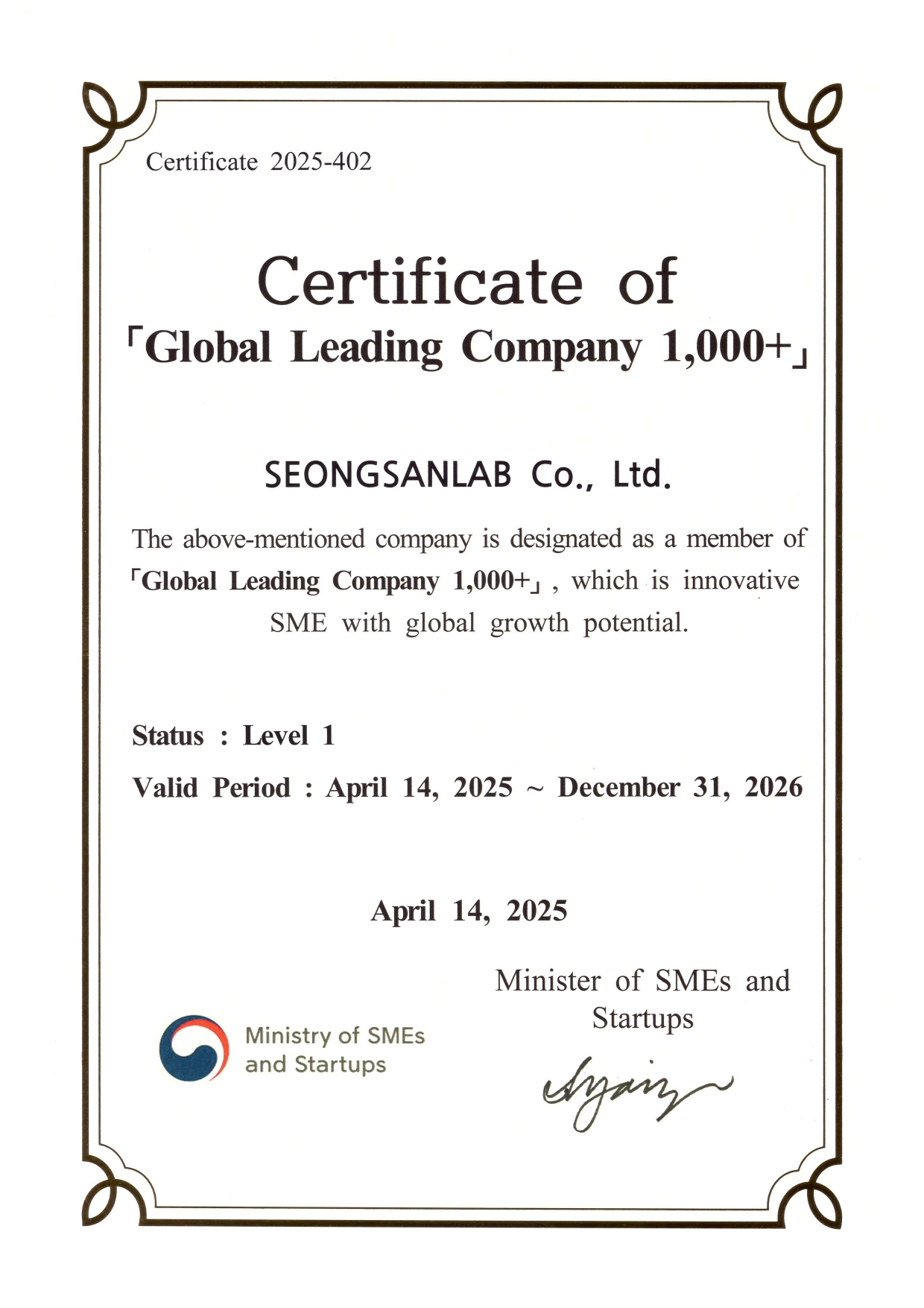
Global Leading Company 1,000+
SEONGSANLAB has been designated as a 'Global Leading Company 1,000+' for 2025~2026 by the Ministry of SMEs and Startups, recognizing our advanced technological innovation and global export potential.
Technical Support Center & Download Hub
SEONGSANLAB provides open access to catalogs, company presentations, and software manuals to assist global engineers and partners in rapid deployment.
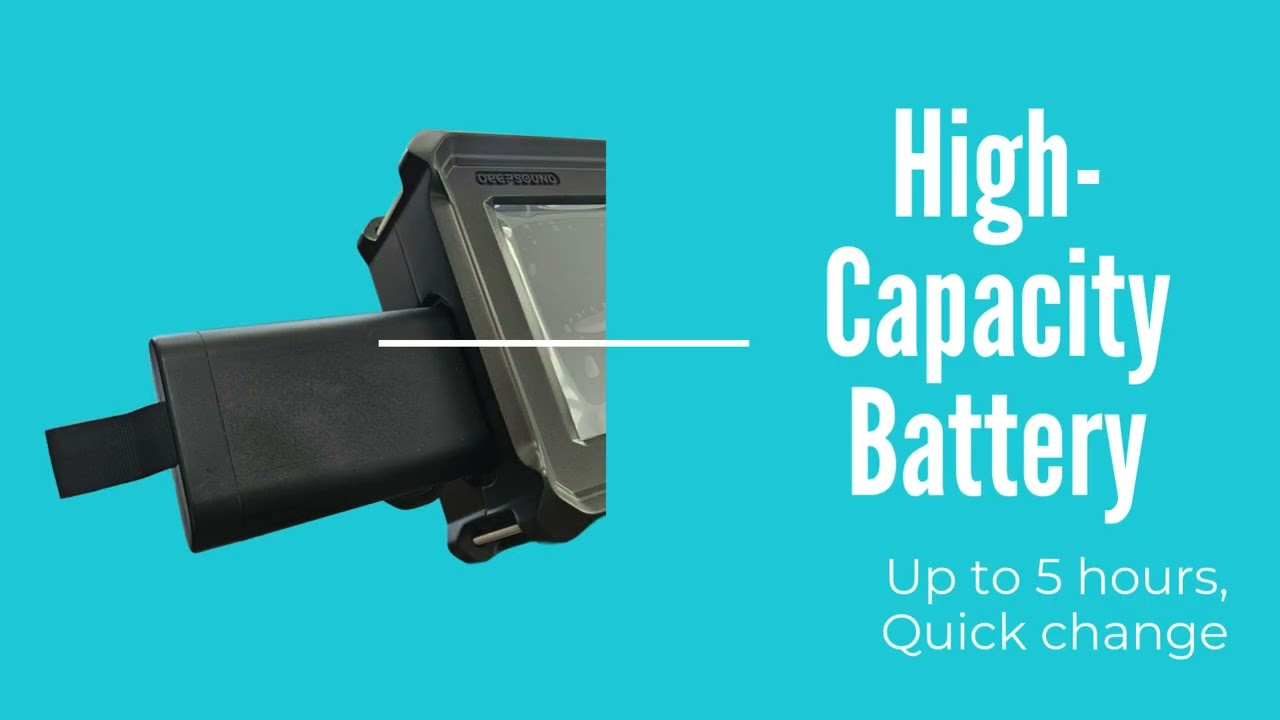
DSPAUT Field Validation & Case Study
Go to Download Hub
Securely download the latest official software releases (DSVision) and developer SDK libraries to control, collect, and analyze your DSPAUT phased array ultrasonic testing data.
Go to Support Portal
Navigate directly to our central support platform to access comprehensive instrument manuals, latest firmware updates, product calibration forms, and NDT engineering FAQs.
Engineering Support & Sales Inquiry
To request a commercial quote, apply for software manual clearance, or schedule a technical consultation regarding PAUT inspection setups, please complete the secure form below.